Difference between revisions of "Effort reporting in 5 steps pictures"
From Help.4pm
Jump to navigationJump to search| (2 intermediate revisions by the same user not shown) | |||
| Line 9: | Line 9: | ||
# '''Fill in''' the effort table and '''SAVE''' the entry. <br> [[File:Effort_5.jpg]] | # '''Fill in''' the effort table and '''SAVE''' the entry. <br> [[File:Effort_5.jpg]] | ||
| − | Once you have find this page, you can add it to the [[ | + | Once you have find this page, you can add it to the [[Favorites/en/]] (upper right corner, icon of the star) – 4PM creates shortcut. |
| + | |||
| + | #first set the desired overview by using filters and sorts; | ||
| + | # click the icon Favourites in the upper right corner, | ||
| + | # add the overview to the Favourites, | ||
| + | # set the name (i.e Effort reporting) and the icon of the Favourite, | ||
| + | # confirm the entry. | ||
| + | |||
| + | Favorite is there available at a single click <br> [[File:Favorites.png | 600 px]] | ||
Latest revision as of 15:18, 20 December 2013
FP7 Effort reporting in 5 steps
Please follow steps described in pictures below.
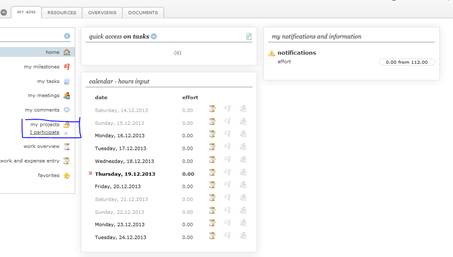
- Enter 4PM and in left tab select My projects / I participate and click Fortissimo (name of the project)
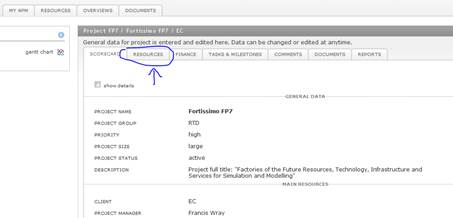
- Click the tab Resources within the project Fortissimo:
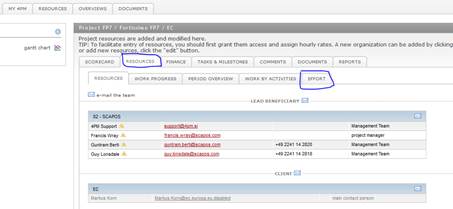
- Click tab Effort:
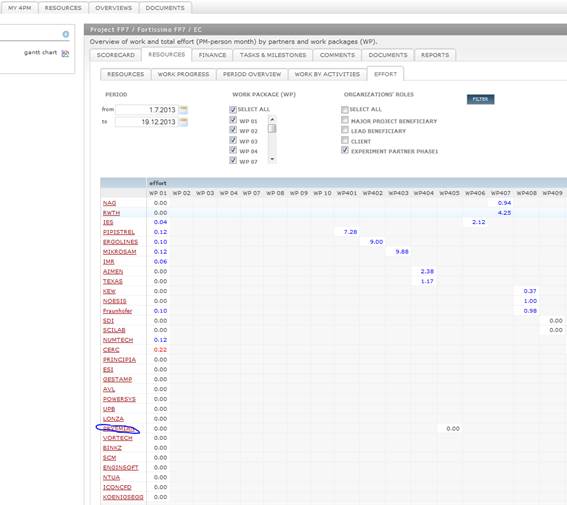
- In the list of project partners find your organization and click the name:
- Fill in the effort table and SAVE the entry.
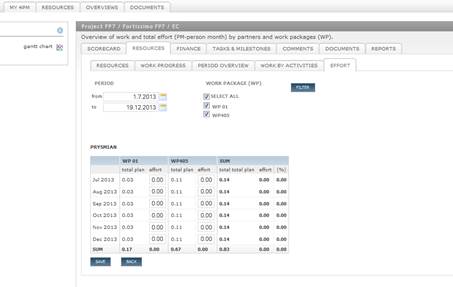


Once you have find this page, you can add it to the Favorites/en/ (upper right corner, icon of the star) – 4PM creates shortcut.
- first set the desired overview by using filters and sorts;
- click the icon Favourites in the upper right corner,
- add the overview to the Favourites,
- set the name (i.e Effort reporting) and the icon of the Favourite,
- confirm the entry.
Favorite is there available at a single click

